Meeting Tips

Radzivon Alkhovik
·
Updated on

A sales manager had a great call with a client. The client was interested, they discussed details, and agreed on the next step. Three days later it turns out the client meant completely different terms, and the manager remembers the conversation differently. A call recording would have resolved this in thirty seconds.
Hello! The mymeet.ai team works with recordings of thousands of business calls every day and knows: properly organized call recording improves team work quality faster than most other tools.
Why Record Calls and What It Gives Business
Call recording isn't a control and surveillance tool. It's a way to preserve information that would otherwise be lost, improve communication quality, and protect yourself in disputed situations. Companies that systematically record business calls build an accumulated knowledge base from real conversations — and that's hard to copy.
Call Recording for Team Analysis and Training
Call recordings are the best material for training sales managers, support operators, and anyone who regularly communicates with clients. Instead of abstract training, new employees listen to real conversations of the best colleagues and see exactly how certain techniques work.
Recording analysis helps identify patterns: which formulations work against price objections, at what stage of the conversation the client is most often lost, what a successful close sounds like. This is data you can't get any other way.
Legal and Organizational Reasons for Call Recording
A call recording captures the exact words of both parties — this is protection in disputed situations. The client claims they agreed to certain terms, the manager remembers different ones — the recording clarifies everything. For companies working in regulated industries — finance, healthcare, legal — recording conversations is often a mandatory requirement.
From an organizational standpoint, recordings solve the problem of information loss when employees change. A new manager taking over a client can listen to the history of all conversations and get up to speed in an hour instead of several weeks.
How to Record an Online Call in Zoom, Google Meet, and Teams
Online calls are easiest to record — most platforms have built-in functionality. Let's go through each major platform step by step.
How to Record a Call in Zoom
Zoom supports two recording types: local to computer and cloud to Zoom account. Local recording is available on all plans including free; cloud recording only on paid plans.
To start recording during a call:
Click the "Record" button on the control panel at the bottom of the screen
Select "Record on this computer" or "Record to cloud"
Participants will see a recording notification
After the call ends, Zoom automatically saves the file to the selected location
For automatic recording of all meetings without manually starting each time:
Go to account settings at zoom.us
Open the "Recording" section
Enable "Automatic recording"
Choose save location — computer or cloud
How to Record a Call in Google Meet
In Google Meet, recording is available to Google Workspace users — free Gmail accounts don't support this feature. To start recording:
Click the three dots in the bottom right corner of the screen
Select "Start recording"
Confirm that all participants have been notified
Recording saves automatically to the organizer's Google Drive in the "Meet Recordings" folder
Google Meet limitation: recording stops automatically when the organizer leaves the meeting. If you need recording to continue — the organizer must stay in the call until the end.
How to Record a Call in Microsoft Teams
In Teams, recording is available to participants who have a Microsoft 365 license. To start recording:
Click the three dots at the top of the screen during the call
Select "Start recording"
All participants receive automatic notification
After completion, the recording appears in the meeting chat and is available to all participants
Team recordings are saved to the organizer's OneDrive or team SharePoint depending on organization settings. In corporate accounts, recording policy may be configured by the administrator — some organizations prohibit recording or restrict who can start it.
How to Record a Call in Yandex.Telemost
Yandex.Telemost (Russian video conferencing service) supports meeting recording for users of paid Yandex 360 for Business plans. To start recording:
Click the three-dot button in the bottom control panel
Select "Start recording"
Wait for confirmation that recording has started
After completion, the recording saves to the organizer's Yandex Disk
The free version of Telemost doesn't support recording. Recordings are available for download and forwarding to participants.
How to Record Client Calls in Sales
Recording client calls is a separate story with its own specifics. Here, not only technical capabilities matter, but what to do with recordings afterward so they bring real value to the team.
What to Analyze in Client Call Recordings
A call recording by itself doesn't provide value — value appears when it's analyzed. Four things worth looking for in sales call recordings:
How the manager responds to objections — which formulations work, where confidence is lost
At what stage the client loses interest — where conversation pace drops
What questions the client asks before making a decision — what matters specifically to them
What words the client uses to describe their problem — ready formulations for marketing
The last point is especially valuable: "We spend three hours after every meeting on minutes" — that's a ready headline for advertising, taken from a real call. Such formulations work better than anything invented in an office.
How to Use Call Recordings for Sales Manager Training
The best training format based on recordings is group analysis of specific calls. Simple scheme:
Select a successful call where the deal closed
Listen together and note key moments
Discuss what worked and why
Take a difficult call where something went wrong
Analyze where the loss point was and what could have been done differently
This format gives much more than abstract sales training. Managers hear real situations from their colleagues, not invented textbook examples. New employees who spend two to three weeks listening to the best calls reach a level that previously required several months.
How to Record a Phone Call on Android and iPhone
Sometimes you need to record a regular phone call — with a client who called your mobile, with a partner or supplier. Capabilities depend on the operating system.
Call Recording on Android
Android provides more freedom for call recording than iOS. On many Samsung, Xiaomi, and other manufacturer devices, recording is built into the standard phone app. To record a call:
Start or answer a call
Find the recording icon on the active call screen
Press record — the other party will hear a notification
After the call ends, the file saves to phone memory
If there's no built-in recording — use third-party apps: Google Phone on supported devices, ACR Call Recorder, Cube Call Recorder. Recording phone conversations for personal use is legal in most jurisdictions, but notifying the other party about recording is good practice.
Call Recording on iPhone
Apple strictly limits call recording on iOS — there's no built-in function. Available options:
Screen recording with audio — enable screen recording via Control Center, put the call on speaker, iPhone microphone will capture audio
Second device — run voice recorder on a second phone or computer near the enabled speakerphone
Third-party service — use apps like TapeACall that connect to the call via conference calling
Switch to video call — FaceTime and other apps support screen recording with audio
Mymeet.ai — Automatic Recording and Analysis of Business Calls
Manual call recording through platform built-in features solves the problem halfway: the recording exists, but then you need to listen to it, transcribe it, and extract useful information. An hour-long call takes another two to three hours of work.
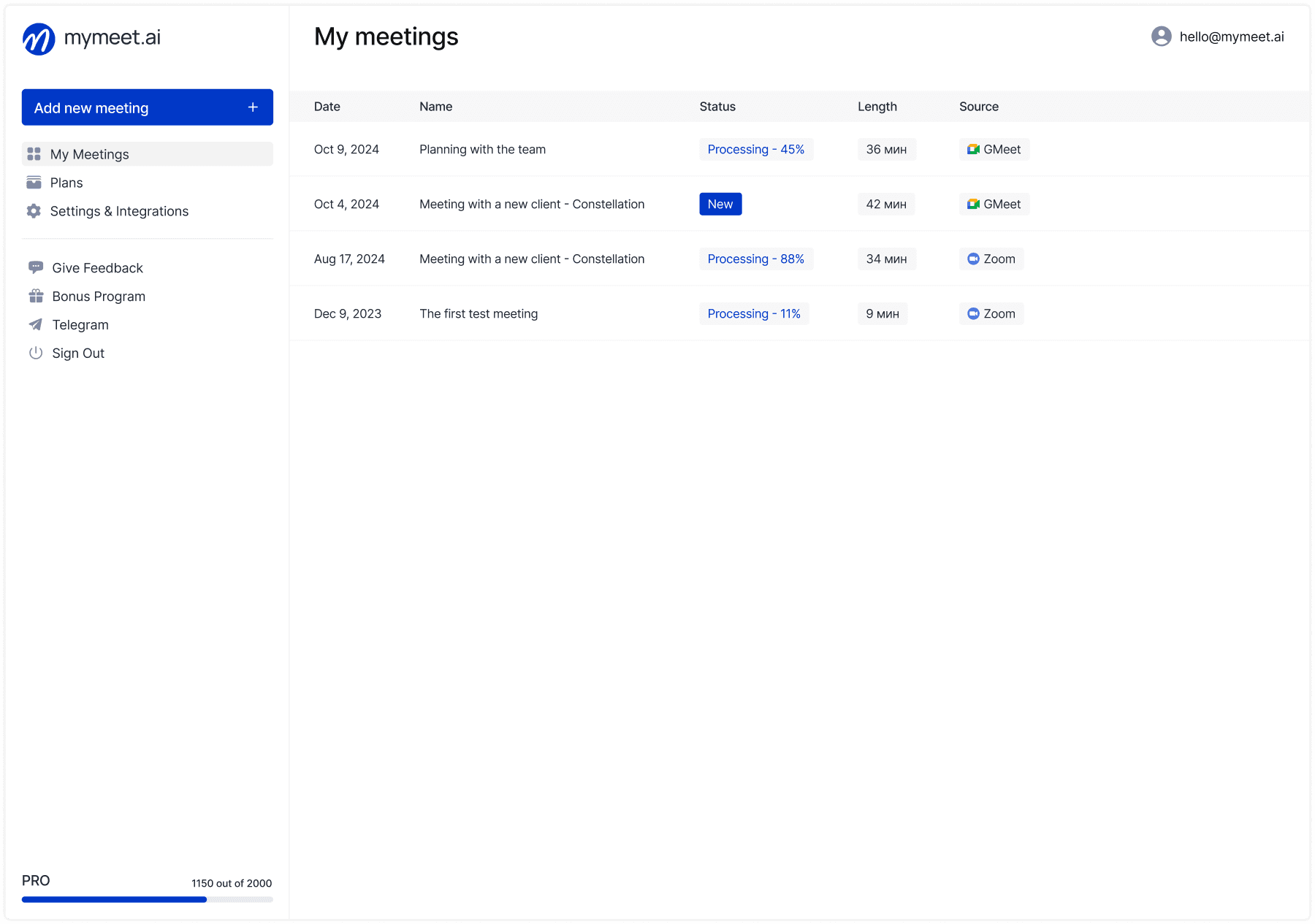
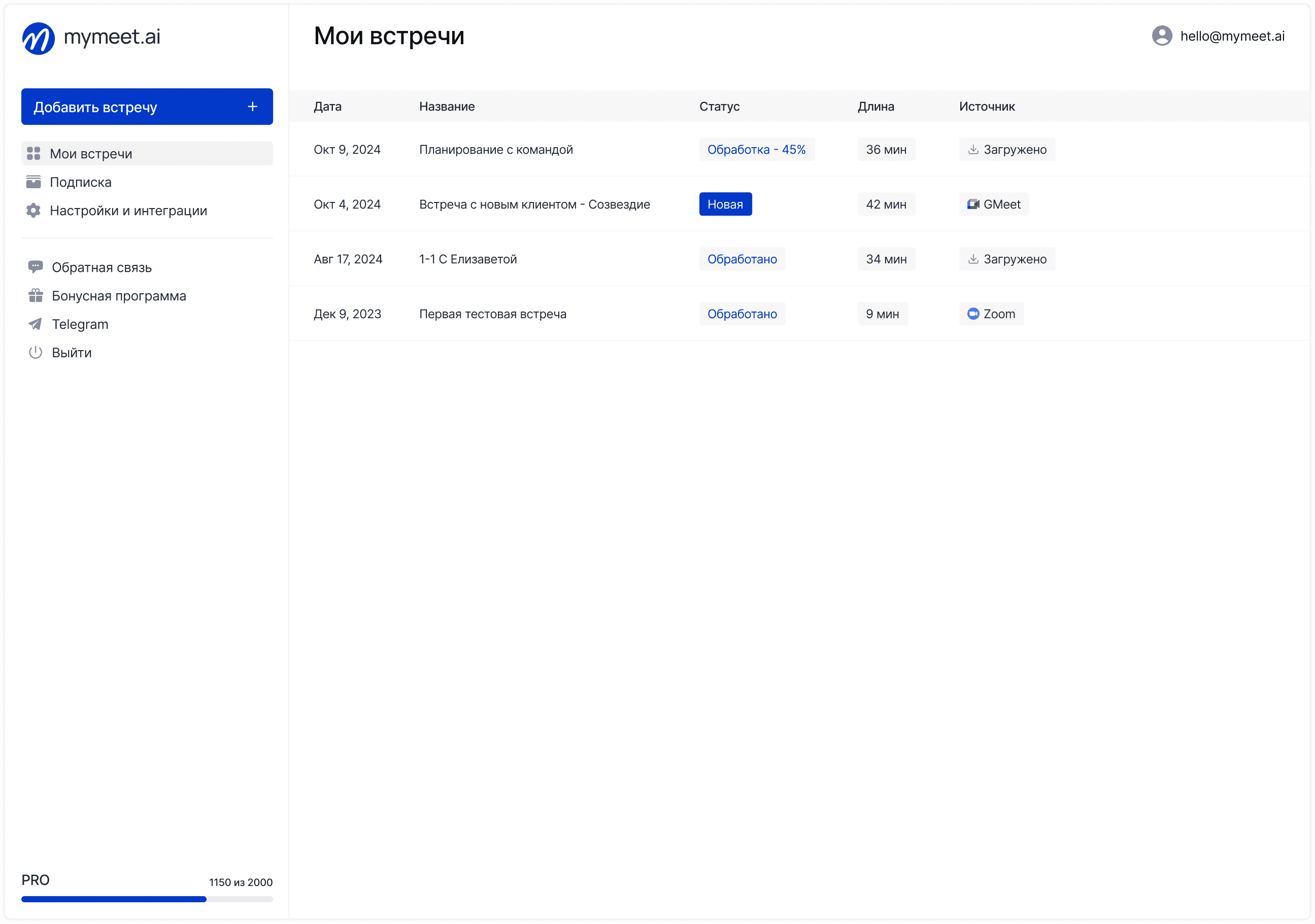
mymeet.ai automates the entire process: connects to calls in Zoom, Google Meet, Microsoft Teams, or Yandex.Telemost through calendar integration, records audio, transcribes speech with 96-98% accuracy, and generates a structured report within minutes after completion. No need to turn anything on manually — the bot joins the meeting on schedule automatically.
Case Study: How electro.cars Saved 15 Hours Weekly on Call Recording
The electro.cars sales department was conducting over 15 client calls weekly. After each conversation, managers manually filled out CRM and wrote summaries — this took up to 15 hours weekly for the entire department.
After connecting mymeet.ai, every call was automatically recorded, transcribed, and analyzed using the "Client Meeting" template: needs, objections, next steps. The report was automatically attached to the deal in CRM. 15 hours weekly returned to client work.
✅ Automatic call recording in Zoom, Google Meet, Teams, Yandex.Telemost
✅ 96-98% transcription accuracy with speaker separation
✅ 11 AI report formats for different call types
✅ Automatic task extraction with assignees and deadlines
✅ AI chat for searching information across all call archives
✅ Integration with amoCRM and Bitrix24 (popular CRM systems)
✅ 180 minutes free, no credit card required
The difference between manual recording and mymeet.ai is the difference between having data and being able to use it. A recording without transcription and analysis sits as dead weight. An automatic report with tasks and key moments is a ready tool for work.
Call Recording Methods Comparison Table
Different recording methods cover different tasks. Platform built-in tools give raw recording without additional processing. For businesses that want to not just store recordings but use them for growth — it's important to understand exactly what you get from each tool.
Recording Method | Platform | Transcription | Analysis | Cost |
Zoom (built-in) | Zoom | No | No | Free/Paid |
Google Meet (built-in) | Google Meet | No | No | Workspace only |
Teams (built-in) | Microsoft Teams | No | No | Microsoft 365 only |
Yandex.Telemost | Telemost | No | No | Paid plan only |
ACR Call Recorder | Android | No | No | Free/Paid |
mymeet.ai | Zoom, Meet, Teams, Telemost | Yes, 96-98% | Yes, 11 formats | 180 min free |
If the task is simply saving a recording just in case, platform built-in tools will handle it. If the task is analyzing calls, training the team, and automatically documenting agreements, you need a specialized tool.
How to Choose a Call Recording Method for Your Task
The choice of recording method depends on three things: which platform you use for calls, what you plan to do with recordings, and what budget you're ready to allocate.
If you conduct meetings in Zoom, Google Meet, Teams, or Yandex.Telemost and want to not just store but work with recordings — mymeet.ai covers the task completely. If you only need raw recording without analysis — use the platform's built-in tools. If you're recording phone calls on Android — built-in recording or ACR Call Recorder. For iPhone — screen recording or third-party service via conference calling.
The main question to ask before choosing: what will you do with the recording in a week? If there's no answer — the recording will likely settle in a folder and never be useful. If the answer is "analyze, train the team, document agreements" — you need a tool that does this automatically.
Conclusion
Call recording is one of the most underrated tools for team growth. Companies that systematically record and analyze business calls gain a real advantage: better understand clients, train new employees faster, and don't lose agreements in disputed situations.
Start small: turn on recording for your next client call and see what you learn from it. If you want this process to happen automatically without manual activation — mymeet.ai offers 180 minutes free without requiring a credit card.
Frequently Asked Questions About Call Recording
How do you record an online call for free?
In Zoom, local recording is available on the free plan — click the "Record" button during the call and select "Record on this computer." In Google Meet and Teams, recording requires a paid subscription. Alternative — mymeet.ai with 180 free minutes that additionally transcribes and analyzes the recording.
Is it legal to record calls with clients?
In most jurisdictions, recording business negotiations for your own use is legal. It's recommended to notify the other party about recording at the start of the conversation — this is good practice and in some cases a mandatory requirement. For companies processing personal data, compliance with relevant data protection regulations is important.
How do you record a call in Zoom without a paid subscription?
Click the "Record" button during the meeting and select "Record on this computer" — this is available on the free plan. Cloud recording requires a paid subscription. After the meeting ends, Zoom will save the file locally to your computer.
Can you record a Google Meet call for free?
No — built-in recording in Google Meet is only available to Google Workspace users. For free Gmail accounts, this feature isn't available. Alternative — connect mymeet.ai which records meetings through a bot participant regardless of Google plan.
How do you record a phone call on an iPhone?
The iPhone has no built-in recording. Options: enable screen recording via Control Center and put the call on speaker, use a second device nearby, or use a third-party service like TapeACall that connects to the call via conference calling.
Where are Zoom meeting recordings stored?
Local recordings save to the Documents/Zoom folder on your computer. Cloud recordings are stored in your personal account at zoom.us in the "Recordings" section and are available for download and sharing. Cloud recording retention period depends on your plan.
How do you automatically record all calls without manual activation?
In Zoom, enable "Automatic recording" in account settings. For all platforms at once — connect mymeet.ai to your calendar: the bot automatically joins every scheduled meeting and records it without human involvement.
What do you do with call recordings after receiving them?
Transcribe, highlight key moments and tasks, use for team training and client work analysis. mymeet.ai does all this automatically: within minutes after the call, the dashboard shows the transcript, structured report, and task list.
How long should you keep business call recordings?
Depends on the recording purpose. For sales analysis and team training — minimum 3-6 months. For legal protection in disputed situations — until the end of client relationship plus statute of limitations. mymeet.ai stores the archive of all meetings indefinitely within the plan.
Can you record calls in Teams without notifying participants?
No — Microsoft Teams automatically notifies all participants when recording starts. A participant who doesn't want to be recorded can leave the meeting. This is a platform requirement that cannot be bypassed through standard Teams features.
Radzivon Alkhovik